Tuesday, April 5, 2022

Content Workflow and the Sitecore Workbox

 Welcome to the second part of Productivity Tips for Sitecore Content Authors and Experience Marketers. In the first post, I covered content governance and listed important considerations when creating your policies and processes.

Keeping in step, the second part of productivity is the importance of having a defined content workflow. Your content workflow outlines the work processes of who will create and review new content, and who will enforce the rules outlined in the governance policy, before content is published for the world to see.

Many companies do this “instinctively” (without a clearly defined process) so it isn’t always enforced or consistently followed so shortcuts are often taken. These shortcuts can cost companies tens of thousands of dollars, if legal issues arise, or damage the company’s reputation as I described in the post on content governance.

So where do you start with Content Workflow?

Great question! In fact, the place to start is by asking yourself several questions while thinking about your current process. Consider your company's rules and regulations around each stage of your content's life-cycle such as creating, publishing, archiving, retaining and disposing of content along with it's rules around data collection and information exchange. Be sure to document the answers so you can translate them into Sitecore workflow states, commands and actions. Examples of questions you should ask:

  • Who determines what content gets created?
  • Who writes the content? Are there different rules and regulations for different regions and or languages?
  • Who’s responsible for the styling and branding of content?
  • Who ensures the content is “accessible” to those with disabilities?
  • Who edits/approves what is written to ensure it falls within the style guide and governance policy?
  • What happens when content is rejected by an approver?
  • Who checks to ensure the content is not damaging or copyright protected?
  • Who publishes the content once it’s approved?
  • What is our process for archiving and removing content?
  • Are there government or industry regulations we need to take into consideration?

Once you have the answers documented you can diagram it and use the diagram to construct and configure your workflow within Sitecore. Because every business is different, Sitecore allows you to custom design one or more workflows for Authoring, Publishing, Archiving, Retaining, and Disposing of content. Don't worry if it's not perfect from the start, you can always adjust and tweak the workflow as your process becomes better defined or changed.

TIP: You can also use Sitecore’s sample workflow as a starting point and modify it to meet the needs of your organization. Here is a process diagram of the default states within Sitecore’s Sample Workflow.

Sitecore Sample Workflow Diagram

In the above diagram, the green arrow for Auto Publish is an automatic action that has been setup to publish content the moment it has been approved.

Here is the Sample Workflow as configured within Sitecore:

Sitecore Sample Workflow Tree Configuration

Notice in this version of Sitecore (version 8.0) there are two “Approve” actions. The “Approve with Test” is a quick way to begin an A/B Test between the new version of content and the previous version. To skip testing the content approver would choose the “Approve without Test” action.

Best Practice Notes:

  1. Always launch a site with Workflow defined and implemented as it can be hard for Content Authors to unlearn bad authoring habits down the road.
  2. Include a step that Approves content for publishing to the “stage” or "pre-production" for a final review – this can be done in the building phase to encourage the use of workflow before the site goes live.
  3. If you are not able to define an accurate/complete workflow up-front, and implement it before you launch, use the Sample Workflow to start, and develop the habit of using it.

Dangers of Not Having a Workflow Process

Still not convinced you need a workflow? Consider the following.

  1. Without a workflow in place it’s very dangerous to use the “Publish Site” option (often requested when installing Sitecore modules), because you don’t know what’s ready and not ready to be published live.
  2. As mentioned earlier, it’s hard to change authoring habits and implement workflow later when there are hundreds or even thousands of items not in workflow.
  3. It's harder to enforce the content guidelines and legal reviews of content if it’s not built into the solution. Anyone can publish content, whether it’s poorly written, copyrighted or otherwise.

Once you have a workflow in place, you can use the Sitecore Workbox to review all the items awaiting approval, check the differences between versions, and assign access to these items to one or more approvers.

Additional Resources

5 things you should consider testing when optimizing a Sitecore form for conversion

 In previous posts, we covered the steps of how to A/B test a Sitecore form to optimize for conversion. We used a very simple scenario to illustrate the process: testing two variations of the action button copy. This was a good start to get our feet wet with testing Sitecore forms. In this post, we’ll look at what we should consider testing when optimizing Sitecore forms for conversions. We’ll go through the thinking behind testing these elements and touch on what’s involved when creating the form variations needed to test.

Let’s dive in.

1. Multi-step vs single step forms

A multi-step form is, as the name implies, a long form that is broken down into steps. A single step form, on the other hand, shows the user all the questions at once. This test is relevant with forms that have between 4-6 fields. Why? Because with fewer than 4 fields, it could be easily argued that it’s not worth breaking down into steps. With more than 6 fields, you’re probably better off breaking down the form. But you know what? You can still test that.

The thinking behind it

There’s a high probability that multi-step forms will work in your advantage. They tend to reduce psychological friction, because users are less likely to get overwhelmed when they see a few questions compared to when they see a ton of them. Additionally, multi-step forms usually have progress indicators. These tend to encourage users to complete the form (endowed progress effect). Why not test what works for you?

What’s involved in creating the form variation

  • Duplicate the original form
  • In Sitecore’s Forms application, drag a Page (under the Structure elements) to the form

Sitecore form structure elements

  • Drag and drop questions from the first page to the second page as needed
  • Change the Navigation step of what was previously the submit button to Next
  • Change the label of what was previously the submit button to something like ‘Next’


2. Wording of questions

The thinking behind it

Is it possible that some of the questions in your form are not worded in the simplest way possible? Could that be the reason why some users are not making it to the finish line? When in doubt, test.

What’s involved in creating the form variation

  • Duplicate the original form
  • Reword your question in a simpler way
  • Pay attention to test one question at a time
  • If you can’t decide what question you should test first, look at the performance of the form (in Forms, select the form in question and go the Performance tab), and find the question that has the highest abandonment 

Sitecore form performance

3. Removing the least necessary fields/questions

The thinking behind it

It’s important that what you’re offering users who submit the form balances the amount of information you’re asking them to provide. Otherwise, conversion will suffer. But how do you make sure you’re hitting that sweet spot? Remove the least necessary questions and test.

What’s involved in creating the form variation

  • Duplicate the original form
  • Remove the questions that are least necessary (ones that are easy to get answers to later on as you qualify them further)


4. Order of fields/questions

The thinking behind it

There are some best practices around the order of questions in a form, which include but are not limited to: following how the user thinks, asking easy questions before difficult ones, and grouping related ones together. Sometimes these principles are not enough to help you decide if you should ask A before B, and you are not even sure it matters. Testing helps.

What’s involved in creating the form variation

  • Duplicate the original form
  • Drag and drop a question to change the order of questions in the form

5. Action button copy and style

The thinking behind it

Ultimately, the more users hit that submit button, the happier you are. But what if the button doesn’t stand out enough or doesn’t have sufficient breathing space? What if changing the copy to make it provoke emotion or enthusiasm gets you more submissions? Why not test? 

What’s involved in creating the form variation

  • Duplicate the original form
  • Change the label of the action button
  • Depending on your Sitecore implementation, you might be able to change the style by changing the CSS class, but you might need the help of your Sitecore partner there

Sitecore form CSS class


And there you have it! 5 things you should consider testing when optimizing a Sitecore form. If you have any questions, ask away in the comments below. Happy testing!

Monday, April 4, 2022

Powershell script to search a keyword in all items in Sitecore

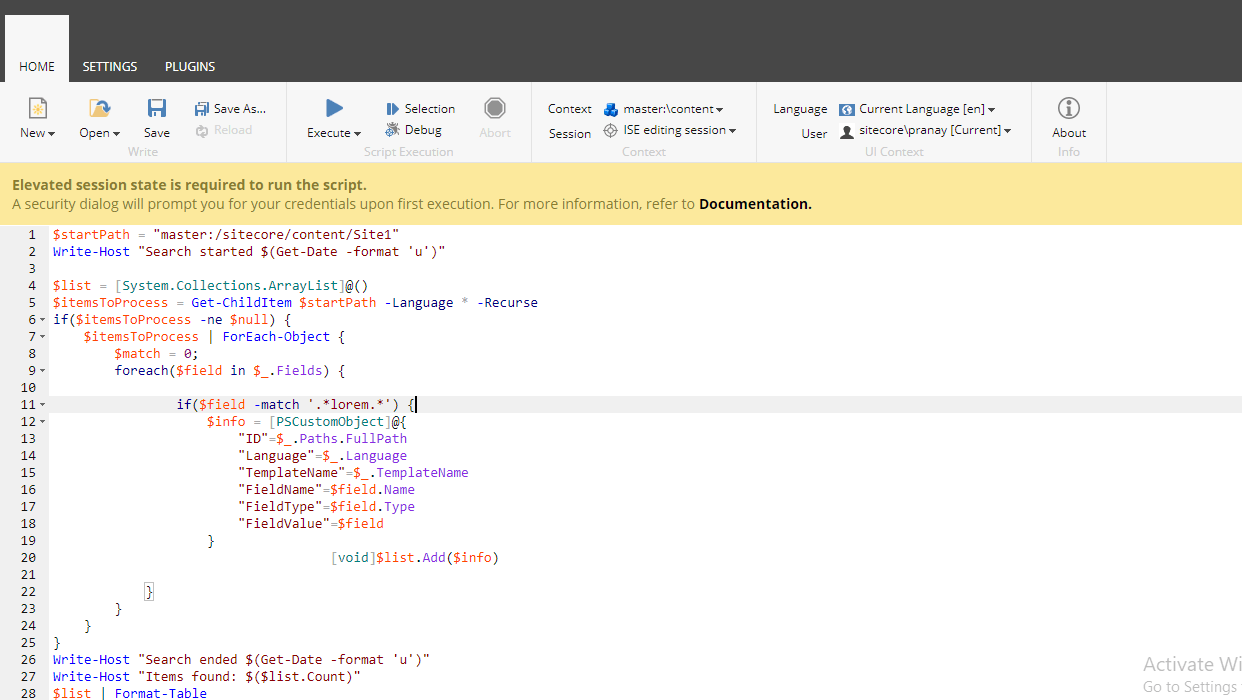
This Powershell script is used to search for an occurrence of a string in all Sitecore items and in all the fields, including the standard fields.

The script traverse through all the items under the item path provided in the script. For each item, it gets all the fields and in each field it tries to match the input string. If the input matches then that item along with additional details is added to an ArrayList which is displayed at the end.

Powershell script to search for a pattern in Sitecore

Note: As the script goes through each item and all its fields, this script would take time to run. It is suggested not to run on the entire site root, instead run it on the sections needed.

Powershell script

$startPath = "master:/sitecore/content/Site1"
Write-Host "Search started $(Get-Date -format 'u')"
$list = [System.Collections.ArrayList]@()
$itemsToProcess = Get-ChildItem $startPath -Language * -Recurse
if($itemsToProcess -ne $null) {
    $itemsToProcess | ForEach-Object { 
        $match = 0;
        foreach($field in $_.Fields) {
                if($field -match '.*productName.*') {
                    $info = [PSCustomObject]@{
                        "ID"=$_.Paths.FullPath
                        "Language"=$_.Language
                        "TemplateName"=$_.TemplateName
                        "FieldName"=$field.Name
                        "FieldType"=$field.Type
                        "FieldValue"=$field
                    }
                    [void]$list.Add($info)
            }
        }
    }
}
Write-Host "Search ended $(Get-Date -format 'u')"
Write-Host "Items found: $($list.Count)"
$list | Format-Table

Hope it helps. Please do share!!

Sitecore Experience editor error /ribbon.aspx siteName

 If you see this error when you open a page in experience editor, then this is the post you should look for.

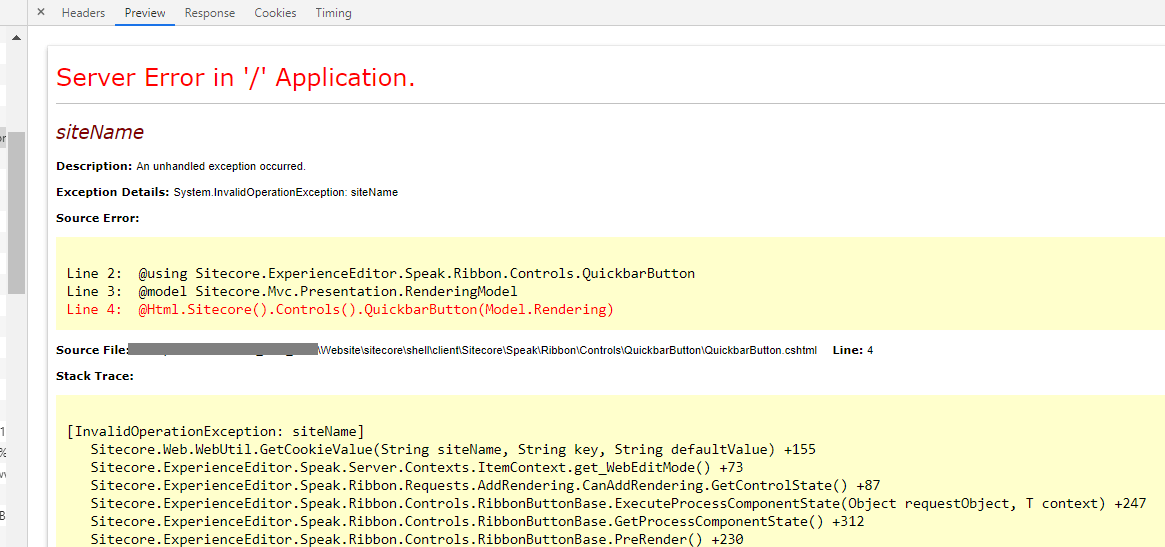
Below is the screenshot of how the error looks from experience editor. The ribbon will completely error out and does not load.

Image Text

If you check the network tab on the chrome browser developer tools, you would see the below request would show a 500 server error. If you preview the request response, then you would see the detailed error as below.

https://mydomain/sitecore/client/Applications/ExperienceEditor/Ribbon.aspx?sc_content=core&ribbonId=%7B570A52B6-6755-461A-8052-5B95EF766F74%7D&itemId=%7BC5296239-4409-4279-BA52-851A6CF9AF38%7D&deviceId=%7BFE5D7FDF-89C0-4D99-9AA3-B5FBD009C9F3%7D&database=master&mode=edit&url=%2F%3Fsc_mode%3Dedit%26sc_itemid%3D%257bC5296239-4409-4279-BA52-851A6CF9AF38%257d%26sc_version%3D1%26sc_lang%3Den%26sc_site%3Dmysite&lang=en&pageSite=mysite&version=1

Image Text

The solution for this error would be to check the following setting.

<setting name="Preview.DefaultSite">

The setting value would be "Website" by default. If you are patching in your custom config files, make sure you are giving the name which is a valid site as per your SiteDefinition.config file.

Hope it helps. Let me know your thoughts.

Monday, March 7, 2022

Steps to update Sitecore SSL certificates (Sitecore XP 9.3)

 It's a general requirement to update the security certificates for the website.

It's more enjoyable when we work on the Sitecore, consider multiple endpoints like CMS, xConnect, Identity servers and XC Roles. I again got a requirement to update the certificates and wanted to share this with the community so everyone can quickly do this without any issue or hurdles.

So let's get started the journey to update the certificate :) 

Steps  1 - Open the mmc.exe


 Ã€dd certification--> computer account


Install your certificate and you will see your certificate here-


Copy the thumbprint of the installed certificate 


Copy the thumbprint of the installed certificate and keep in a file.

Now, got to certificate and add all application pools identifier.


Make sure you enter the name in   IIS AppPool\App Pool identifier name format otherwise you wouldn't get the identifier.


Now, Search for the existing thumbprint on the site, You will find in below files.

  1. Identityserver\Config\production\Sitecore.IdentityServer.Host.xml
  2. CMsite\App_Config\ConnectionStrings.config
  3. xconnect\App_Config\AppSettings.config
  4. xconnect\App_Data\jobs\continuous\ProcessingEngine\App_Config\ConnectionStrings.config
  5. xconnect\App_Data\jobs\continuous\AutomationEngine\App_Config\ConnectionStrings.config

After replacing the file, got to IIS site and choose the correct certificate and restart the IIS.

that's it, It's very straightforward.

Troubleshooting - 

1. I got this error after updating the SSL certificate.

Fix - I missed to include the identifier role in the certificate, After including that role this issue got resolved,

Sunday, January 9, 2022

Enable Basic Authentication in Sitecore 10 & IIS 10


Steps:

1. Install Authentication in IIS
2. Create a new account for basic login
3. Update configs in Sitecore 10.x
+) Web.config
add key="owin:AutomaticAppStartup" value="false"

+)Disable identity server in Sitecore 10
Sitecore.Owin.Authentication.Disabler.config.example
Sitecore.Owin.Authentication.IdentityServer.Disabler.config.example

Wednesday, December 22, 2021

Sitecore PowerShell script to remove all language versions except one

This post provides Sitecore PowerShell script to remove all lang versions except one for items under a Sitecore node recursively.

Here in my example, removes all language versions except for English language.

In some cases you may want to remove versions of an item or an entire node in all languages except one or few languages. In that case it is difficult to remove them manually. Instead if we can use a PowerShell script in Sitecore, it would make our job very easy.

Is this not the script you are looking for? Then check the complete list of Sitecore Powershell scripts

Steps:

  1. Retrieve all the child items recursively. Include the root item too.
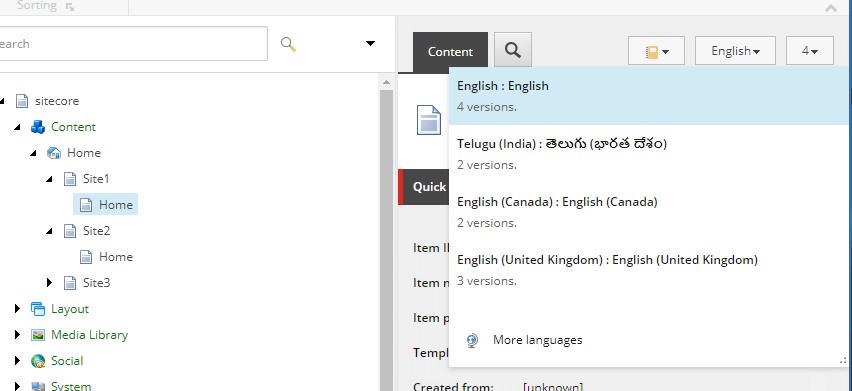
  2. For each item, get all the versions in all languages.
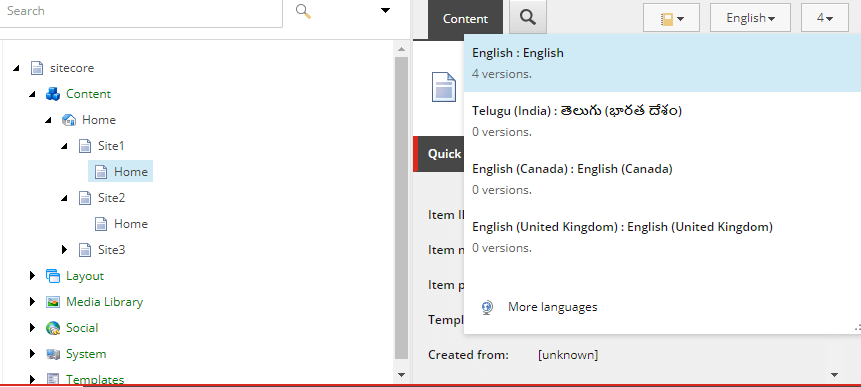
  3. Check if the language version retrieved is the one you want to remove.If so, use the Remove-ItemVersion to remove that particular version.

With versions

Versions deleted

Sitecore PowerShell script

$props = @{
   InfoTitle = "Remove Versions"
    PageSize = 10000000
}

$sourcePath =  "master:/sitecore/content/Home/Site1"

function Remove-Versions {

    $items = Get-ChildItem -Path $sourcePath -Recurse
    $rootItem = Get-Item -Path $sourcePath
    $items = $items + $rootItem

    foreach ($item in $items)
    {
        foreach ($version in $item.Versions.GetVersions($true))
        {
            if ($version.Language -ne "en")
            {
                Remove-ItemVersion $version
                Write-Host $version.ID " - " $version.Language "- deleted"
                $version;
            }
        }   
    }

}

$items = Remove-Versions
$items | Show-ListView @props -Property ItemPath, ID, @{Label="Language"; Expression={$_."Language"}} 
Close-Window

Wednesday, November 17, 2021

Sitecore Powershell script to unpublish items

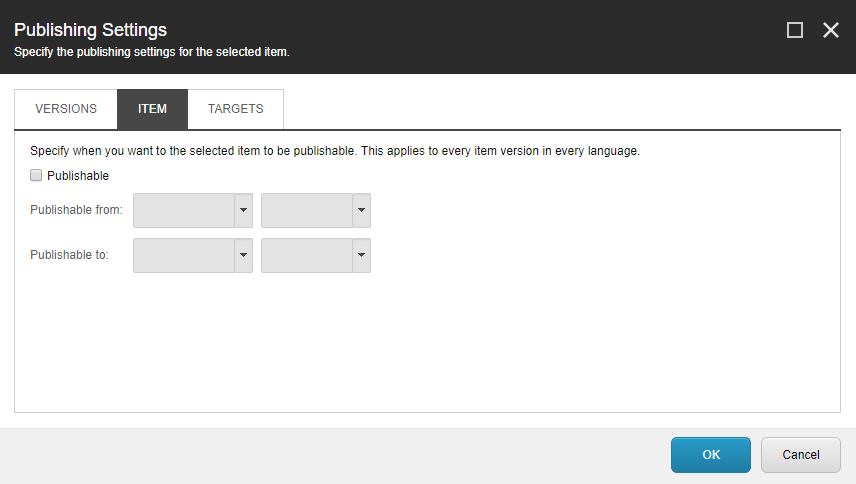
If you want to delete or unpublish all items under a root item using PowerShell script then this is the post you are looking for. This script disables the 'publishable' option of an item in Sitecore.

Is this not the script you are looking for? Then check this complete list of Sitecore Powershell scripts

Unpublishing an item

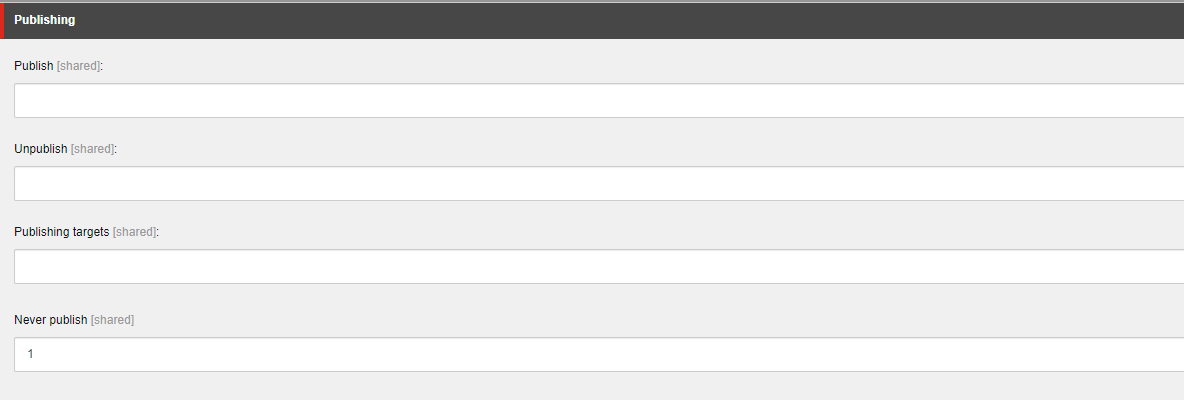
Every item has publishable option. Upon disabling and publishing to web, the item will be removed from web database. If there are multiple items which are need to be deleted, doing it manually will never be a good option. Here is the script which disables the publishing option. The publishable option is disabled by setting the value in the field Never Publish under the section Publishing. This can be viewed by checking the field raw values mode.

Image Text

Here, setting the $item.Fields["__Never publish"].Value to 1 disables the publishable option.

Image Text

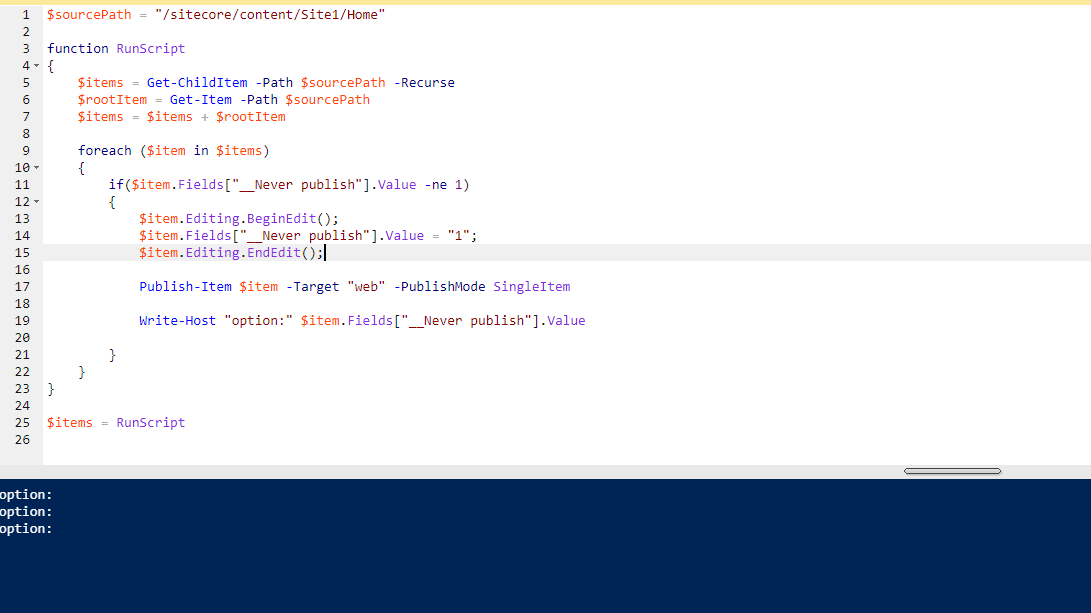
Sitecore Powershell script to unpublish items by setting off 'publishable' option

$sourcePath = "/sitecore/content/Site1/Home"
function RunScript
{
    $items = Get-ChildItem -Path $sourcePath -Recurse
    $rootItem = Get-Item -Path $sourcePath
    $items = $items + $rootItem

    foreach ($item in $items)
    {
        if($item.Fields["__Never publish"].Value -ne 1)
        {
            $item.Editing.BeginEdit();
            $item.Fields["__Never publish"].Value = "1";
            $item.Editing.EndEdit();
        
            Publish-Item $item -Target "web" -PublishMode SingleItem 

            Write-Host "option:" $item.Fields["__Never publish"].Value
        
        }
    }
}

$items = RunScript

Image Text

Friday, November 5, 2021

Creating Your Own Styles Using Sitecore SXA

 Today I would like to talk about how to use your own Style in SXA. For those who have never had the opportunity to work with SXA, it is a very powerful tool for creating standardized sets of layouts and components based on recommended practices that can be used across multiple sites.

When we talk about styles in SXA, we first need to start by talking about Themes. Using Themes, you can define the appearance of a site without having to change the site itself or its content.

When you install SXA, you may notice that it already comes with a default Theme, called Wireframe, to help you get started. However, it is possible to create a custom Theme for the site that you are working on. Any new theme that you create will inherit from the default Theme.

By right-clicking the Content node, I created a Tenant and a site called Fernando. (Tenants are a feature of SXA).

Content Tree with Tenant Node expanded

After creating my site, SXA automatically created a folder with the name of my website inside Media Library -> Themes. As stated above, it already comes with Wireframe (default Theme) created.

Content Tree with Themes expanded

SXA will automatically break new themes into folders with necessary scaffolding items. If we open the style folder, we can see the classes that have already been created by the SXA separated by components and functionalities.

Styles folder expanded in content tree

Let's start with a simple example, in which we change the background color of an image. For this, we will open the class corresponding to the image component (later I will show where it does the css link with the component). An easy way is to select the component you want to change (component-image) and search the field Media and download it.

Media field in component style item

I just opened the .css file and created these two simple classes, one to paint the background in black and the other to paint red. After changing, we will click Attach to upload the changed file.

.image-techguildsblack img {

  background-color: black;

}

.image-techguildsred img {

  background-color: red;

}


Now comes the coolest part in my opinion, where we make the connection of the class I created with the component.

Let's open our site in Content root and navigate to Presentation / Styles. Here we’ll link our class to our component. Every Component has its own Style item underneath the “Styles” node. In here, right-click the “Image” component to add new Style items.

Style items underneath Component item in content tree

After we create a Style, we have to fill the “Value” field with the proper class name. In the Allowed Renderings, select the components to which the class will apply (here we selected the Image component).

Style section including allowed renderings

After saving everything, lets open our page through the Experience Editor. In the XPE, I just selected Image through the SXA Toolbox, I added an image in the data source and went on to edit the properties of the component.

Inside control properties we go down to Styling. In the Image session we can see the two Styles we created in the previous step.

Control properties window with style slections

After clicking save, our background changes to black.

TechGuilds header black background

Switching to Red in just one click.

TechGuilds Header Red Background

Thanks for reading! I hope my guide on customizing styling with SXA was been helpful!

Monday, October 11, 2021

Install Sitecore 9.3 using 3 Simple Commands

 Sitecore 9.3 was announced at the Sitecore Symposium 2019 and I am excited to share 3 simple commands to get you going on your development machine or laptop. This release is now available from dev.sitecore.net to download.

Command 1 – Install Sitecore Pre-Requisites

As Sitecore moved from version 8.x to version 9.x, the installation process completely changed and required to install additional pre-requisites. There is a long list of pre-requisites and I have seen developers keeping a checklist of software that they need to install for a new instance of Sitecore on their machine or on client’s server. There is an alternative way, which has been part of the installation script since Sitecore 9.1 but not widely used. It is the Prerequisites.json file for installing pre-requisites. The easier and simpler way is to run this SIF command via PowerShell:

Install-SitecoreConfiguration –Path “.\Prerequisites.json”

This command will not only download all of the required software but also install it on your behalf. I recently used this command on a vanilla VM and it took about 12 minutes to download and install everything. Notice in the screenshot below that it skips the already installed components:

Command 2 – Install Solr

For any Sitecore version 9.x to be installed locally, Solr (or Azure Search) is required to be installed and working correctly prior to installing Sitecore. Typically, a developer has to download and install Solr from a zip package, install it as a windows services and also install its SSL certificate (forgot to mention that you need to install Java SDK and setup its home path if you are on a brand new machine!).

Well, all of the above is now thing of the past, just open this Solr-SingleDeveloper.jsonfile, update simple parameters like what version of Solr you want, what port number you would like to associate it with and what should be default install location and run this SIF command:

Install-SitecoreConfiguration “.\Solr-SingleDeveloper.json”


This is a MAGIC script and it did everything that would have taken anyone several hours to figure out, if it was their first time. Once the command was completed, I verified that the Solr was up and running over the specified SSL port!


Command 3 – Install Sitecore

Lastly, I opened up the XP0-SingleDeveloper.ps1 PowerShell script, change the essential parameters like site name and database parameters and ran the following script:

.\XP0-SingleDeveloper.ps1

New Feature: By popular demand there is a new SIF parameter as SitePhysicalRoot.  If that is left empty, the default path will be \inetpub\wwwroot otherwise it will be the new path location.

If you have everything installed correctly then you will have a successful installation!!

Once the installation was complete, I was able to login (full marks for guessing the password)

I have started exploring the new features like the the new Experience Optimization Dashboard


Happy Sitecoring!