Tuesday, April 5, 2022

5 things you should consider testing when optimizing a Sitecore form for conversion

 In previous posts, we covered the steps of how to A/B test a Sitecore form to optimize for conversion. We used a very simple scenario to illustrate the process: testing two variations of the action button copy. This was a good start to get our feet wet with testing Sitecore forms. In this post, we’ll look at what we should consider testing when optimizing Sitecore forms for conversions. We’ll go through the thinking behind testing these elements and touch on what’s involved when creating the form variations needed to test.

Let’s dive in.

1. Multi-step vs single step forms

A multi-step form is, as the name implies, a long form that is broken down into steps. A single step form, on the other hand, shows the user all the questions at once. This test is relevant with forms that have between 4-6 fields. Why? Because with fewer than 4 fields, it could be easily argued that it’s not worth breaking down into steps. With more than 6 fields, you’re probably better off breaking down the form. But you know what? You can still test that.

The thinking behind it

There’s a high probability that multi-step forms will work in your advantage. They tend to reduce psychological friction, because users are less likely to get overwhelmed when they see a few questions compared to when they see a ton of them. Additionally, multi-step forms usually have progress indicators. These tend to encourage users to complete the form (endowed progress effect). Why not test what works for you?

What’s involved in creating the form variation

  • Duplicate the original form
  • In Sitecore’s Forms application, drag a Page (under the Structure elements) to the form

Sitecore form structure elements

  • Drag and drop questions from the first page to the second page as needed
  • Change the Navigation step of what was previously the submit button to Next
  • Change the label of what was previously the submit button to something like ‘Next’


2. Wording of questions

The thinking behind it

Is it possible that some of the questions in your form are not worded in the simplest way possible? Could that be the reason why some users are not making it to the finish line? When in doubt, test.

What’s involved in creating the form variation

  • Duplicate the original form
  • Reword your question in a simpler way
  • Pay attention to test one question at a time
  • If you can’t decide what question you should test first, look at the performance of the form (in Forms, select the form in question and go the Performance tab), and find the question that has the highest abandonment 

Sitecore form performance

3. Removing the least necessary fields/questions

The thinking behind it

It’s important that what you’re offering users who submit the form balances the amount of information you’re asking them to provide. Otherwise, conversion will suffer. But how do you make sure you’re hitting that sweet spot? Remove the least necessary questions and test.

What’s involved in creating the form variation

  • Duplicate the original form
  • Remove the questions that are least necessary (ones that are easy to get answers to later on as you qualify them further)


4. Order of fields/questions

The thinking behind it

There are some best practices around the order of questions in a form, which include but are not limited to: following how the user thinks, asking easy questions before difficult ones, and grouping related ones together. Sometimes these principles are not enough to help you decide if you should ask A before B, and you are not even sure it matters. Testing helps.

What’s involved in creating the form variation

  • Duplicate the original form
  • Drag and drop a question to change the order of questions in the form

5. Action button copy and style

The thinking behind it

Ultimately, the more users hit that submit button, the happier you are. But what if the button doesn’t stand out enough or doesn’t have sufficient breathing space? What if changing the copy to make it provoke emotion or enthusiasm gets you more submissions? Why not test? 

What’s involved in creating the form variation

  • Duplicate the original form
  • Change the label of the action button
  • Depending on your Sitecore implementation, you might be able to change the style by changing the CSS class, but you might need the help of your Sitecore partner there

Sitecore form CSS class


And there you have it! 5 things you should consider testing when optimizing a Sitecore form. If you have any questions, ask away in the comments below. Happy testing!

Monday, April 4, 2022

Powershell script to search a keyword in all items in Sitecore

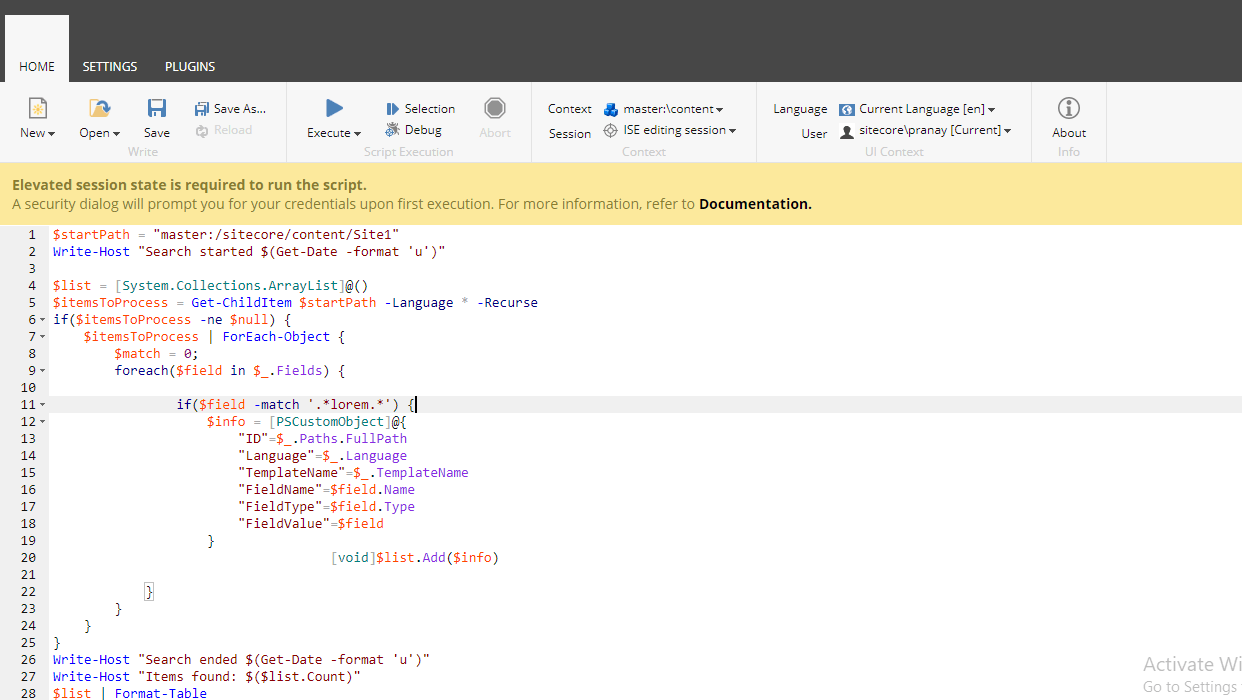
This Powershell script is used to search for an occurrence of a string in all Sitecore items and in all the fields, including the standard fields.

The script traverse through all the items under the item path provided in the script. For each item, it gets all the fields and in each field it tries to match the input string. If the input matches then that item along with additional details is added to an ArrayList which is displayed at the end.

Powershell script to search for a pattern in Sitecore

Note: As the script goes through each item and all its fields, this script would take time to run. It is suggested not to run on the entire site root, instead run it on the sections needed.

Powershell script

$startPath = "master:/sitecore/content/Site1"
Write-Host "Search started $(Get-Date -format 'u')"
$list = [System.Collections.ArrayList]@()
$itemsToProcess = Get-ChildItem $startPath -Language * -Recurse
if($itemsToProcess -ne $null) {
    $itemsToProcess | ForEach-Object { 
        $match = 0;
        foreach($field in $_.Fields) {
                if($field -match '.*productName.*') {
                    $info = [PSCustomObject]@{
                        "ID"=$_.Paths.FullPath
                        "Language"=$_.Language
                        "TemplateName"=$_.TemplateName
                        "FieldName"=$field.Name
                        "FieldType"=$field.Type
                        "FieldValue"=$field
                    }
                    [void]$list.Add($info)
            }
        }
    }
}
Write-Host "Search ended $(Get-Date -format 'u')"
Write-Host "Items found: $($list.Count)"
$list | Format-Table

Hope it helps. Please do share!!

Sitecore Experience editor error /ribbon.aspx siteName

 If you see this error when you open a page in experience editor, then this is the post you should look for.

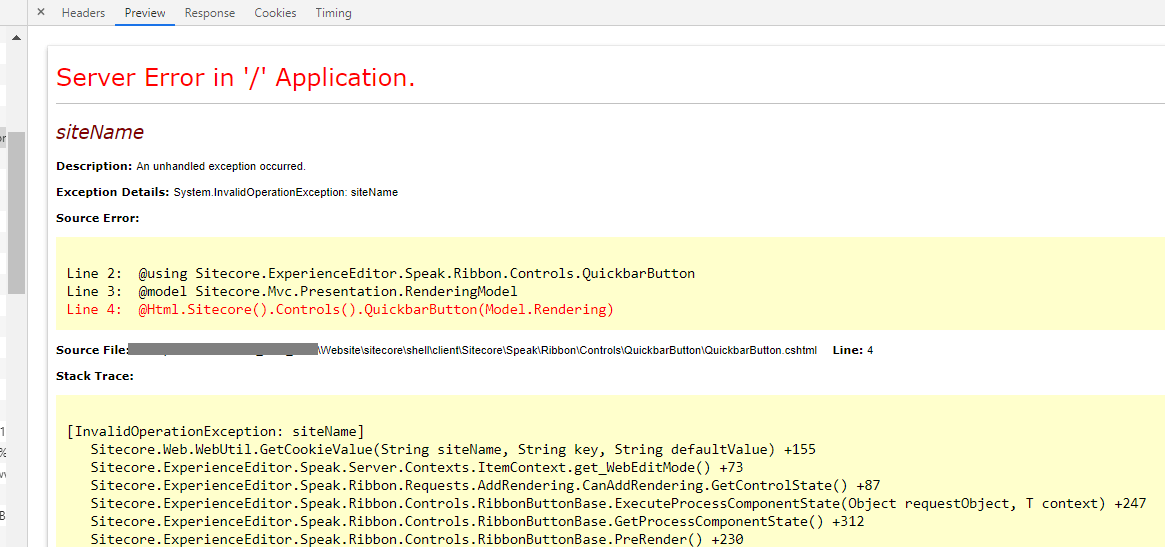
Below is the screenshot of how the error looks from experience editor. The ribbon will completely error out and does not load.

Image Text

If you check the network tab on the chrome browser developer tools, you would see the below request would show a 500 server error. If you preview the request response, then you would see the detailed error as below.

https://mydomain/sitecore/client/Applications/ExperienceEditor/Ribbon.aspx?sc_content=core&ribbonId=%7B570A52B6-6755-461A-8052-5B95EF766F74%7D&itemId=%7BC5296239-4409-4279-BA52-851A6CF9AF38%7D&deviceId=%7BFE5D7FDF-89C0-4D99-9AA3-B5FBD009C9F3%7D&database=master&mode=edit&url=%2F%3Fsc_mode%3Dedit%26sc_itemid%3D%257bC5296239-4409-4279-BA52-851A6CF9AF38%257d%26sc_version%3D1%26sc_lang%3Den%26sc_site%3Dmysite&lang=en&pageSite=mysite&version=1

Image Text

The solution for this error would be to check the following setting.

<setting name="Preview.DefaultSite">

The setting value would be "Website" by default. If you are patching in your custom config files, make sure you are giving the name which is a valid site as per your SiteDefinition.config file.

Hope it helps. Let me know your thoughts.

Monday, March 7, 2022

Steps to update Sitecore SSL certificates (Sitecore XP 9.3)

 It's a general requirement to update the security certificates for the website.

It's more enjoyable when we work on the Sitecore, consider multiple endpoints like CMS, xConnect, Identity servers and XC Roles. I again got a requirement to update the certificates and wanted to share this with the community so everyone can quickly do this without any issue or hurdles.

So let's get started the journey to update the certificate :) 

Steps  1 - Open the mmc.exe


 Àdd certification--> computer account


Install your certificate and you will see your certificate here-


Copy the thumbprint of the installed certificate 


Copy the thumbprint of the installed certificate and keep in a file.

Now, got to certificate and add all application pools identifier.


Make sure you enter the name in   IIS AppPool\App Pool identifier name format otherwise you wouldn't get the identifier.


Now, Search for the existing thumbprint on the site, You will find in below files.

  1. Identityserver\Config\production\Sitecore.IdentityServer.Host.xml
  2. CMsite\App_Config\ConnectionStrings.config
  3. xconnect\App_Config\AppSettings.config
  4. xconnect\App_Data\jobs\continuous\ProcessingEngine\App_Config\ConnectionStrings.config
  5. xconnect\App_Data\jobs\continuous\AutomationEngine\App_Config\ConnectionStrings.config

After replacing the file, got to IIS site and choose the correct certificate and restart the IIS.

that's it, It's very straightforward.

Troubleshooting - 

1. I got this error after updating the SSL certificate.

Fix - I missed to include the identifier role in the certificate, After including that role this issue got resolved,